Local Development Setup
Prerequisites
-
Access to Zebroo Sync github repo (get in touch with us if you need access)
-
Python
-
pip
-
Docker, and our Odoo Docker framework zodoo — it provides the
odoocommand used throughout this page
Clone repo
On your target machine:
git clone --branch 19.0 git@github.com:Odoo-Ninjas/zebroo-sync.git
cd zebroo-sync
The repository has one branch per Odoo version (11.0 … 19.0). Pick the branch
matching the Odoo version you want to work with; 19.0 is the current one, and
gimera.yml pins the matching Odoo release for you.
Install required packages
Use Gimera: our own package installation config tool, designed to simplify Odoo requirement installation. See the Gimera documentation for the configuration format and the full command set.
Install Gimera
pipx install gimera
Install project requirements
Install all package requirements, as described in gimera.yml, including Odoo:
gimera apply
Grab a coffee ☕️ It can take a few minutes to receive all objects (~10GB).
Tip: Once Gimera has finished resolved deltas, it appears to halt for a minute while creating a zipped cache, to speed up the next time those packages need installing. If you cancel the command, it can result in a corrupted tarball that needs removing (rm ~/.cache/gimera/github.com-odoo-odoo.tar.gz) and the installation needs repeating. To monitor cache creation progress:
#Expected output includes something like: -rw-r--r-- 1 root root 9.1G Mar 17 10:13 github.com-odoo-odoo.tar.gz
#File size should increase if the command is re-run, indicating that it's being actively updated.
ls -lh ~/.cache/gimera
Start project
The following commands use zodoo, our Odoo Docker framework, which provides a clean and easy-to-use odoo CLI. Its own documentation covers installation, a getting started guide, the command reference and Mac setup. But you can also run the Odoo code as you usually do, as preferred.
#Reload and link modules. Create a docker-compose file. Initiates the database with demo data (omit "--demo" if not wanted)
odoo reload --demo

#Build required docker container according to the docker-compose file
odoo build

#Reset database and initialise odoo instance
#Note: it's expected that there are warnings like "Module zbsync_specification not installed!"
odoo -f db reset

#Optionally, update installed Odoo modules to include all zSYNC modules
#Otherwise modules will need activating manually via the Odoo UI
odoo update

#If permission is denied for update.log
sudo chmod u+rwx update.log

#Start the dev instance
odoo dev
For stepping through Python code see Debug Mode in the zodoo documentation.
In a second terminal, get the address for your now running instance
#Output should include a url field, to access your odoo instance
odoo status
Login with default credentials (admin, admin)
Activate Zebroo Sync module
Only required if the odoo update step was skipped above.
Navigate to Apps, clear all preselected search filters and search for the module zbsync. Activate it and wait for the installation to complete.

Now the Zebroo Sync app should have been activated and you can navigate to it via the top-leftmost menu
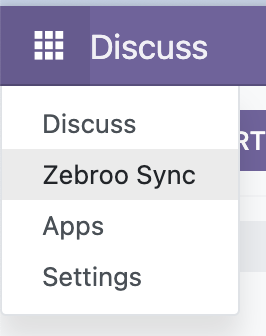
Congratulations and happy zSYNCing! 🎉
Working with a copy of a production database
zSYNC ships Odoo's standard neutralization files (data/neutralize.sql). They
run whenever a database copy is neutralized — odoo-bin neutralize, a
staging build on odoo.sh, or a zodoo restore with DEVMODE=1. Afterwards the
copy no longer talks to the systems the production pipelines are connected to:
- All pipelines are paused, so the cron no longer picks up their runs.
- Passwords, tokens, OAuth secrets and SSH private keys of all connections are removed. Hosts, user names and connection string templates stay, so the configuration is still readable.
- HTTP headers and cookies whose name contains
auth,key,tokenorsecretget the valueneutralized.
To test a pipeline on such a copy, enter the credentials of a test system and remove the Paused flag of that pipeline.
What next?
Learn how to Build Your First Pipeline.