Web Worker (HTTP/S)
Purpose and Use Case
Web workers are one of the most commonly used zSYNC workers. They allow for interact with external HTTP/S APIs (both public and private), for CRUD operations and data manipulation.
Here there is no differentiation between grabbers and dumpers. The worker can be used for either, depending on the selected HTTP method. The fields available on the web worker similarly correlate to standard HTTP request attributes.
Configuration
1. Root URL
The Root URL is the base address for the API endpoint. Type the URL into the field and select Create and edit to configure auth, proxy or environment settings, or simply click Create to save without modifying anything.
The Root URL is configured separately from the Path so that it can be saved reused across several workers, making it efficient for managing multiple endpoints. The URL may include a port or protocol (http:// or https://).
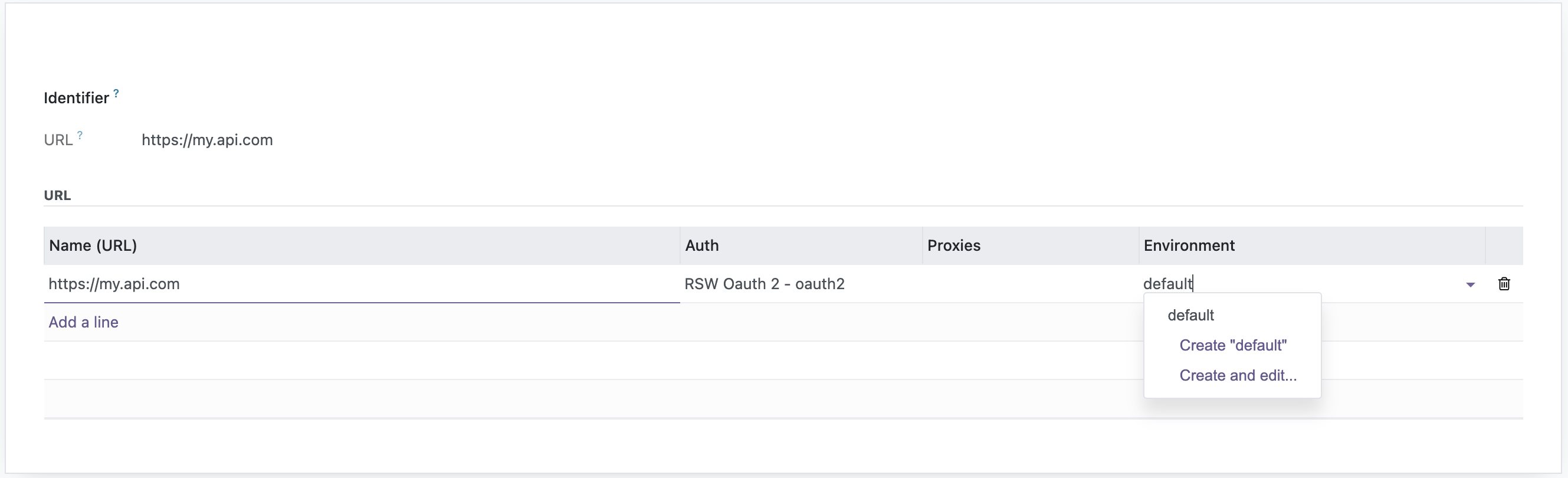
Be sure to define an environment in the Root URL config, otherwise the request with fail with an error: Expected at least one value: zbs.web.url.per_env()
Best Practice: Configure the Root URL once and reuse it in multiple worker configurations to maintain consistency.
2. Path
The Path field defines the specific API endpoint or resource that will be appended to the Root URL. It supports dynamic path parameters.
Example: If the Root URL is https://api.example.com and the Path is /v1/users/{record.user_id}, the reference to the record passed from the previous worker is parsed, and the full endpoint becomes https://api.example.com/v1/users/id12345.
Tip: Use placeholders or variables in the Path when working with dynamic data.
3. Method
The HTTP Method defines the type of request to make. The following methods are supported:
-
GET: Retrieve data from the server.
-
POST: Send data to the server to create a resource.
-
PUT: Update an existing resource completely.
-
PATCH: Update an existing resource partially.
-
DELETE: Remove a resource from the server.
-
HEAD: Retrieve headers without the response body.
-
OPTIONS: Fetch the communication options for the target resource.
4. Send without Body
The Send without Body checkbox ensures that no request body is sent, even if the HTTP method usually allows it (like POST or PUT). This is useful when interacting with servers that expect no body for certain methods.
Warning: Enabling this option when the server expects a body may result in a 400 (Bad Request) error.
5. Request Content Type
This field specifies the content type of the request data. Supported types are:
-
application/json -
application/xml -
application/x-www-form-urlencoded -
broken! - html -
broken! - text -
broken! - xml -
GraphQL Query -
text/html -
text/plain
6. Response Content Type
This field defines the format of the response data. Supported types are:
-
application/json -
application/xml -
Raw-Content -
text/html -
text/plain
7. Timeout (seconds)
The Timeout field specifies the maximum time which the Odoo server wait for a response. The default is 10 seconds.
8. Retry Pattern
This field expects comma separated integer values (seconds) and specifies the retry logic in case of errors It is used only in conjunction with Queue Jobs.
If no pattern is provided, the worker does not retry by default.
Example: 1,5,10,20
Error responses
A response with a status of 400 or above fails the request as before. The status
code and the beginning of the response body are kept as error_code and
error_details of the error (credentials of the request masked), so the batch
error shows what the API complained about.
If an API uses an error status as a regular answer — a 404 while an order is not
known yet, a 410 for a deleted record, a 423 for a locked one — pick these codes
in Non-Failing Status Codes. Such a response does not fail the batch: the
input record goes on to the next step and carries the error under
___zbs_error, exactly like Continue with error on the step, just without an
Error Condition:
input {"sku": "A-1"} + 410 -> {"sku": "A-1", "___zbs_error": {"error_source": "http", "error_code": 410, ...}}
In the next step, record.get("___zbs_error") tells these records apart from
successful ones, its error_code holds the status. The response body is in
error_details, it is never merged into the record. Streaming behaves the same
way (no attachment is written), and pagination stops at such a response.
For anything beyond a list of codes — other workers, conditions on the body,
skipping instead of passing on — use the error rules of the step, e.g. Error
Condition error.error_code == 404 with On Record Error Continue with error.
See Error Handling. Codes picked on
the worker are handled before the step's rules see them. A 5xx accepted either
way does not go through the retry pattern.
9. Retrieve Response Headers
When checked, the worker will include response headers in the result that is returned to the browser.
zSYNC makes HTTP requests from the Odoo backend server, not from the browser. This means that the user must specifically choose for the response headers to be returned from the server to the worker and pipeline.
#Sample data without headers
{
  "fact": "The lightest cat on record is a blue point Himalayan called Tinker Toy, who weighed 1 pound, 6 ounces (616 g). Tinker Toy was 2.75 inches (7 cm) tall and 7.5 inches (19 cm) long.",
  "length": 178
}

#Sample data with headers
{
  "headers": {
    "Date": "Mon, 07 Apr 2025 08:00:43 GMT",
    "Content-Type": "application/json",
    "Transfer-Encoding": "chunked",
    "Connection": "keep-alive",
    "Server": "cloudflare",
    "Cache-Control": "no-cache, private",
    "X-Ratelimit-Limit": "100",
    "X-Ratelimit-Remaining": "91",
    "Access-Control-Allow-Origin": "*",
    "X-Frame-Options": "SAMEORIGIN",
    "X-Xss-Protection": "1; mode=block",
    "X-Content-Type-Options": "nosniff",
    "Cf-Cache-Status": "DYNAMIC",
    "Content-Encoding": "gzip",
    "Set-Cookie": "XSRF-TOKEN=<token>; SameSite=Lax; Secure; Path=/; Max-Age=7200; Expires=Mon, 07 Apr 2025 10:00:43 GMT",
    "alt-svc": "h3=\":443\"; ma=86400"
  },
  "response": {
    "fact": "Statistics indicate that animal lovers in recent years have shown a preference for cats over dogs!",
    "length": 98
  }
}
Data is taken from the public Cat Facts API at https://catfact.ninja
10. Body
This field contains the body of the request, written as zSYNC code. Leave empty if not needed.
Tip: Format the body according to the chosen request content type (e.g., JSON, XML).
return {"email":"joanna@example.de","password": environment.joanna_password,"recaptchaToken":""}
11. Next URL Page
The Next URL Page field is used for pagination. The expected content is zSYNC code, which dynamically generates the next page URL based on the previous response.
Examples:
#Example 1
return data["next_page_url"]

#Example 2
url = f'project.com/records?page={data["current_page"]+1}'
return url
12. Data Field
This field specifies the data to extract from the response. It uses zSYNC code to navigate the response structure and retrieve the desired field.
Example:
#Often useful in conjunction with retrieving headers:
response['data']
13. Post Process
The Post Process field allows for executing zSYNC code after the data retrieval to perform transformations or store values for later use.
Example: Storing cookies or specific headers for subsequent API calls.
instance_env["session_cookies"] = {
    "bearer_token": data["headers"]["Authorization"],
}
return True
14. Request Parameters
Configure standard or custom HTTP headers, cookies and files for the request.

A parameter of type File uploads a file as multipart/form-data under the
given name. Its value evaluates to the raw content or to a record using the
usual file keys: _source_attachment_id, filecontent or content, optionally
filename to name the upload. Only _source_attachment_id is streamed from the
filestore, the other keys are held in memory — use it for large files. A File
parameter cannot be combined with a JSON body: enable Send without body or use
a non-JSON Request Content Type.
Authentication
Authentication is configured on the Root URL, not on the individual worker — since the Root URL can be shared/reused across workers, its auth configuration is too. Open the Root URL's Create and edit view to manage its URL lines, and each line has its own Auth, Proxies, and Environment columns:
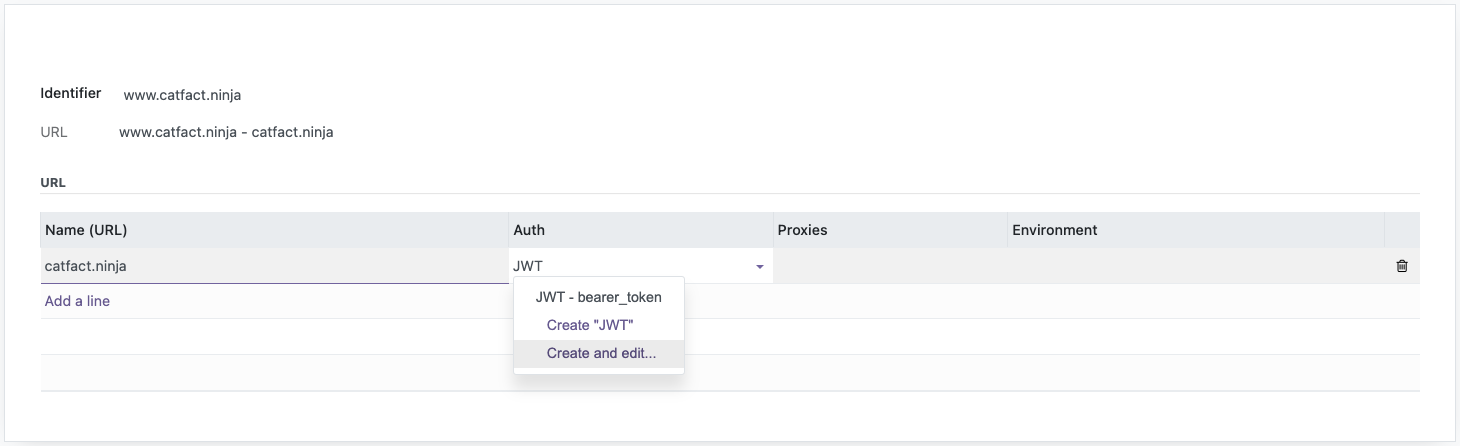
Selecting Create and edit... on the Auth column opens the Web Authentication (zbs.connection.web.auth) form, where you pick an Auth Type:
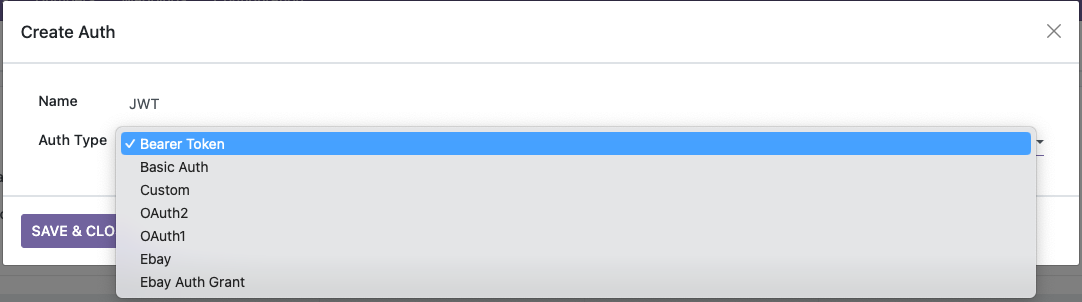
Supported Auth Types:
- Bearer Token — a single static or generated token, sent as an
Authorization: Bearer <token>header. - Basic Auth — username/password sent as standard HTTP Basic authentication.
- Custom — write your own auth logic as a zSYNC code field when none of the built-in types fit.
- OAuth2 / OAuth1 — standard OAuth flows (
zbsync_web_oauth). - Ebay / Ebay Auth Grant — eBay-specific OAuth variants (
zbsync_web_ebay). - JWT — RSA/JWT bearer-token auth, most commonly used together with the HTTP Receiver side of zSYNC (
zbsync_web_jwt_specification).
For a Bearer Token auth, for example, the only thing to configure is the token itself:
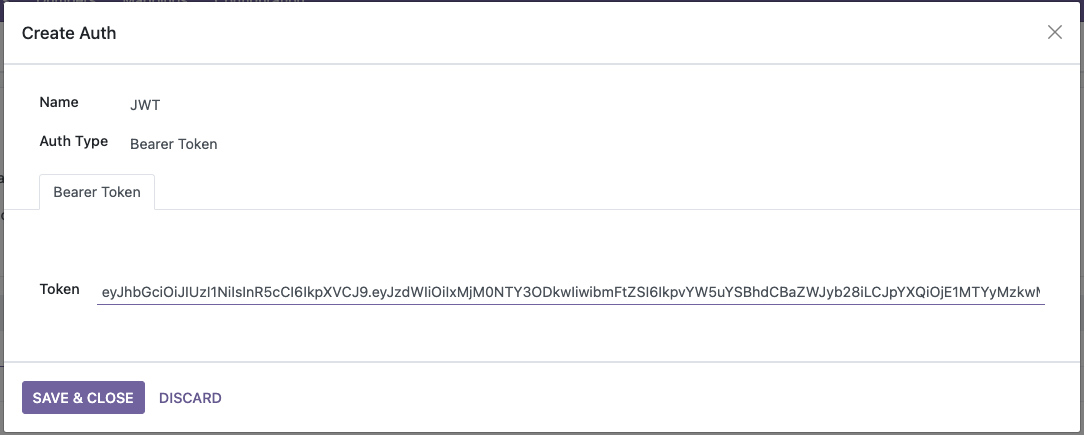
Once saved, the Web Auth record is reusable — attach it to the Root URL of any Web Grabber/Dumper that needs to authenticate against that same API.