Mapper Workers
Purpose and Use Case
The Mapper (zbs.mapper, module zbsync_mapper) is the primary tool for reshaping data as it moves through a pipeline, without writing code for simple field renames or restructuring. A Mapper holds a tree of Mappings (zbs.mapping) — one row per destination field or nested structure — that together describe how an input record becomes an output record.
There are two distinct kinds of transformation a Mapper can perform, separately or together:
- Restructuring — changing the shape of the data (flattening, nesting, turning a field into a list of objects, etc.).
- Renaming / deriving values — copying, translating, computing, or looking up the value that ends up in a destination field.
Configuring the Mapper
Integration Type and Backends
Before adding mapping rows, the Mapper needs to know the shape of its source and destination so it can offer field suggestions. This is configured via Integration Type:
| Integration Type | Source | Destination |
|---|---|---|
| External → Odoo | External Backend (schema) | Odoo Model (direct picker) |
| Odoo → External | Odoo Model (direct picker) | External Backend (schema) |
| External → External | External Backend (schema) | External Backend (schema) |
| Odoo → Odoo | Odoo Model (direct picker) | Odoo Model (direct picker) |
- Odoo Source/Destination Model — pick an
ir.modeldirectly (e.g.product.product). zSYNC introspects its fields automatically and auto-creates a shared backend behind the scenes. - External Source/Destination Backend — a Backend (
zbs.mapper.backend) describing a non-Odoo structure, so field pickers can offer suggestions. A backend can be:- Empty — no suggestions; fall back to typing raw field names.
- Backend Model — a stored JSON/YAML/XML schema.
- Odoo Model — introspects an Odoo model's fields (useful when the "external" system is actually another local model).
Helper actions available on the Mapper form:
| Action | What it does |
|---|---|
| Auto-detect Odoo Source Model (magic wand) | Walks backward through the pipeline to find the nearest upstream Odoo Grabber or Mapper and sets Integration Type + Source Model to match. Falls back to opening the Configure Backend wizard if no Odoo model is found upstream. |
| Configure Source/Destination Backend (gear icon) | Opens the Create Backend Wizard: paste or upload a JSON, YAML, CSV, Excel, or XML sample to build a schema, or auto-detect the schema from the previous pipeline step's actual output. |
| Rebuild Source/Dest Backend | Regenerates the backend's field tree from the mappings currently configured — shown (in red) only when the mappings and the backend schema have drifted apart. |
| Generate Backends from Legacy Mappings | Only shown when the mapper has pre-existing mappings using dot-notation field names (built before the backend/schema system existed). Splits dotted paths into nested Object mappings, converts old default-value patterns into Code mappings, and generates a matching Backend Model schema from the result. |
The Mappings list stays hidden until an Integration Type has been selected.
Mapping Rows
Each row's Source Field and Destination Field are Many2one pickers scoped to the configured backend, letting you drill into nested/related fields level by level instead of typing raw paths. A breadcrumb Path display and a live Transform Preview are shown alongside. Raw text fallback fields (Source (raw) / Dest (raw)) remain available — hidden by default — for advanced cases or fields the backend doesn't know about yet (typing a new one here adds it to the backend schema on the fly).
Rows are flagged with warning indicators when something needs attention:
| Indicator | Meaning |
|---|---|
| Backend Warning | The mapping references a field that no longer matches the configured backend's schema. |
| Duplicate Mapping | Another active sibling mapping writes to the same destination field. |
| Missing Required Fields | The row's action requires a Source and/or Destination field that hasn't been set. |
A Create Mapping wizard is also available for quickly adding a single field-to-field row by picking directly from both backends' field trees and an action, without opening the full mapping form.
Fields on a Mapping Row
| Field | Description |
|---|---|
| Source Field | The field to read from the input data. Supports dot-notation for nested access (e.g. partner_id.name). Leave empty for Object/List actions where the full (sub-)record is passed to children. |
| Action | How the source value is transformed and written to the destination — see the Action table below. |
| Parent | The mapping this row is nested under. The parent must use the Object, List, List Object, or Code action; this row is then applied to the sub-record/sub-dict the parent creates. |
| Destination Field | The field to write on the output. Leave empty for anonymous Object/List actions where children write directly into the parent. |
Action
| Action | Selection value | Details |
|---|---|---|
| → Direct | direct | Copies the source value to the destination field as-is. |
| {} Object | object | Creates a nested object at the destination field; child mappings populate it. |
| ≡ List | list | Creates a list at the destination field; child mappings populate each element. If the destination field already holds a list (written by a sibling mapping), the List mapping enriches those existing items instead of appending new ones — pairing sources to targets positionally when they're the same length, or broadcasting every source to every target otherwise. |
| ≡{} List Object | list_object | Shorthand for List + Object: builds a list of dicts directly from child mappings, without needing a separate Object row nested inside a List row. |
| ⟨/⟩ Code | eval | Evaluates a Python expression (the Code field) and writes its result to the destination. Available variables: value, record, mapped, env, instance_env, instance. The last evaluated expression is the mapped value; raise SkipRecord() skips the whole record. |
| ↵ Default | eval_default | Same evaluation mechanism as Code, intended for injecting a value when there's no real source field (e.g. static defaults or environment-derived values). |
| ⇄ Value Map | mapped_values | Translates specific source values to specific destination values via a static lookup table (see Value Map below). |
| ⌕ Lookup | lookup | Searches another Odoo model for a matching record and writes its id (see Lookup below). |
Restructuring a Data Type
Use Object ({}), List ([]), and List Object (≡{}) to change the shape of the data, independent of renaming any fields.
- Object creates a new nested object in the output. Give it a Destination Field so it can be referenced as the Parent of other mapping rows — those rows' destination fields then nest inside it instead of sitting at the top level.
- List works the same way but produces a list — useful when a single source field needs to become several destination records, or combined with Loop Records to iterate a source sub-list into an equivalent destination sub-list.
- List Object is a shortcut for the common "list of objects" case — it creates the list and builds each element as a dict from its children in one row, instead of needing a List row with a nested Object row inside it.
Example: to turn a flat source record into {"customer": {"country": ..., "city": ...}}, add an Object mapping with Destination Field customer, then add further mapping rows for country and city whose Parent is that customer row.
Altering or Adding Data and Field Names
- Direct renames a field 1:1 without altering its value.
- Code runs a Python expression to compute the destination value from anything available on the record (formatting a date, combining fields, doing a calculation, etc.) — see the Variables & Examples panel on the mapping form for ready-made snippets.
- Default injects a value with no (or an unused) source field — useful for constants the destination system requires.
- Value Map and Lookup translate values rather than just renaming fields.
Value Map (mapped_values)
Configure a list of Mapped Values rows (Source Value → Dest Value) on the mapping. One row can be marked Default Value to use when the source value doesn't match any entry and is itself empty. Enable Strict Mapped Types if the source/destination values need to be evaluated as Python literals (e.g. 1 as an int rather than the string "1") instead of compared as plain strings. An unmatched, non-empty source value raises an error — there is no silent fallback other than the configured default.
Lookup (lookup)
| Field | Description |
|---|---|
| Model | Technical name of the Odoo model to search, e.g. res.partner. |
| Field | Field on that model to match the source value against, e.g. ref. |
| Operator | = (exact, case-sensitive), ilike (case-insensitive contains), or like (case-sensitive contains). |
| Use Cache (alpha) | Caches search results for the duration of the run. Marked as an alpha-stage implementation — verify results carefully before relying on it in production. |
| Action if not found | Create — build a new record dict from any child mappings (or a minimal {field: value} dict) for the dumper to create; Raise Error — abort the pipeline run. |
Lookup accepts a list as the source value (e.g. for a many2many destination) and resolves each item independently, raising an error if more than one match is found for a given value.
Other Row-Level Options
| Field | Description |
|---|---|
| Is Key | Marks this field as part of the record's identity for update-vs-create matching on the following Dumper (added to ___keys). Only takes effect while the Mapper's Can Keys setting is enabled. |
| Source may miss | Silently ignores a missing source field instead of raising an error. |
| Skip if mapped value empty | Doesn't write the destination field when the mapped result is empty/False/an empty list. |
| No Create (Odoo dumping only) | Prevents the dumper from creating new related records for this field — update-only. |
| No Update (Odoo dumping only) | Prevents the dumper from updating existing related records for this field — create-only. |
| Default Value | Only writes this field when creating a new record; skipped on update if the destination already has a value. |
| Filter Delta | Only processes this mapping when the source value has changed since the last sync (flags the field so the dumper skips unchanged values). |
| Skip If | Never (always apply), or If not in env.fields — skip unless the source field name is listed among the environment's changed fields (used for delta-trigger pipelines fed by zbsync_trigger_methods). |
| Output Stream | Leave blank to write to the main output record, or set to Environment to write the mapped value into the pipeline's instance environment (keyed by the destination field name) instead. |
| Unlink Subrecords | Removes destination sub-records no longer present in the source data (adds the destination field to ___keys_delete). Only meaningful on List/Object mappings. |
| Loop Records | Processes each item of a source list individually — iterating pipeline records one at a time — instead of passing the whole batch at once. Only valid on List/Object/List Object mappings. |
| Comment | Free-text note for documentation purposes; not used during execution. |
Filtering
| Field | Description |
|---|---|
| Filter Domain | A Python expression evaluated before the mapping runs, filtering the incoming record(s) — for list records, each item is tested individually and only matching items are kept; for a single record, a falsy result treats it as empty. Available variables: record, mapped, env. |
| Skip Record Expression | A Python expression evaluated before the mapping runs; if truthy, the entire record is skipped. Note that inside a child mapping nested under an Object/List/List Object row, record is the sub-record at that level, not necessarily the original root record. Available variables: record, mapped, value, env. |
Importing / Generating Mappings
Rather than building every row by hand, a Mapper accepts an example payload:
- Set Specification Type (
JSONorYAML). - Paste a representative record into Example Value.
- Click Import Mappings.
zSYNC walks the example structure and creates one Direct mapping per scalar leaf, and an Object/List mapping (with nested children) for every dict/list it encounters, skipping any field that's already mapped. The Example Value field is cleared after a successful import.
Scaffolding from a real pipeline run
Hand-writing the example payload is the slow way. If the pipeline already runs, take the example from the data itself.
On a pipeline instance, open the batch produced by the worker before the Mapper and press Copy to next Mapper. zSYNC finds the next Mapper downstream of that line, and writes the batch's output into its Example Value as JSON. Then open that Mapper and press Import Mappings as above.
The result is a mapper scaffolded from exactly the structure the previous worker really emits, including fields you would not have thought to put in a hand-written example.
Two details worth knowing:
- Only one representative record is copied. If the batch output is a list, the first item is used — the mapper only needs the shape, not the volume.
- The button fails with a clear error if the batch output cannot be resolved into a mapper-readable structure. Format the data with a Transformer before the Mapper and try again.
The same JSON is also kept on the batch as Output Json for Mapper, refreshed automatically whenever the batch output changes, so you can read it without copying it anywhere. On streaming (JSONL) outputs only the first record is materialised, so this stays cheap on multi-gigabyte runs.
Usage and Best Practices
Common Pitfalls
- Missing Integration Type: the Mappings list is hidden entirely until Integration Type is set — if a Mapper looks empty, check this first.
- Raw field names bypass the schema: typing into the hidden "Source (raw)" / "Dest (raw)" fields still works, but skips backend validation — prefer the field pickers so Backend Warning/Missing Required Fields indicators stay meaningful.
skip_record_exprscope confusion: inside a nested child mapping,recordrefers to the sub-item the parent passed down, not the pipeline's original input record — a root-level check likenot record.get('external_id')will misbehave if copied onto a child row unmodified.- Value Map with no match and no default: an unmatched, non-empty source value raises an error rather than silently passing the value through or leaving the field blank.
loop_recordson the wrong action: it's only valid on List/Object/List Object mappings — setting it on a Direct/Code/Lookup/Value Map row raises a validation error.Is KeywithoutCan Keys:Is Keyfields are ignored at runtime if the Mapper'sCan Keyssetting has been turned off.
Performance Tips
- Prefer the field pickers backed by an Odoo Model or imported Backend Model over hand-typed raw paths — they catch typos and drift (via the Backend Warning indicator) before a pipeline run fails.
- Reach for Import Mappings to scaffold a mapper from a representative payload, then adjust individual rows, rather than building deeply nested structures by hand from scratch.
Use Cacheon a Lookup is explicitly alpha — validate against a case with many repeated lookup values before turning it on in a high-volume production pipeline.
Examples
The screenshots below were captured before the Integration Type / Backend schema system existed — the mapping table (Source, Action, Destination) itself works the same, but the surrounding form now also includes the Integration Type and Source/Destination Backend configuration described above.
1. JSON to JSON: field renaming
Use case: map OnShape part descriptions for importing as product variants to Odoo.
Input:
ZebrooSet:[
  {
    "name": "Klotz 50x50x25",
    "id": "9a4b02be-f5e7-44c8-81ef-6b4e7d87a4ad",
    "title1": "Klotz 50x50x25",
    "description": null,
    "partNumber": "50005289",
    "elementId": "ac87f48f-94c0-4870-80c5-d8cf6dfc35a7",
    "partId": "JHD",
    "customProperties": {
      "6683b17fe8a4a63b915cb14b": "Schweißvorrichtung",
      "57f3fb8efa3416c06701d61c": "2025-02-12T11:34:48.212Z",
      "67a9ef793d498f138ff2a881": "50005289",
    },
    "isFlattenedBody": false,
    "ordinal": 0,
    "defaultColorHash": "Fh6at4piFh7QTMb_0_0",
    "appearance": {
      "color": {
        "red": 157,
        "green": 207,
        "blue": 237
      },
      "isGenerated": true,
      "opacity": 255
    },
    "documentId": "e11815a2-66c6-49ff-9278-3fc6d8195b90",
    "versionId": "ac87f48f-94c0-4870-80c5-d8cf6dfc35a7"
  },
  {
    "name": "AluPro 100",
    "id": "d21f719f-b6ae-4561-8a07-7a6361e3f2cf",
    "title1": "AluPro 100",
    "description": null,
    "partNumber": "50005291",
    "elementId": "1c372858-4a10-4be6-99d0-b303a5f0f9a4",
    "partId": "JUD",
    "customProperties": {
      "6683b17fe8a4a63b915cb14b": "Schweißvorrichtung",
      "57f3fb8efa3416c06701d61c": "2025-02-12T14:39:00.354Z",
      "67a9ef793d498f138ff2a881": "50005289",
    },
    "isFlattenedBody": false,
    "ordinal": 0,
    "defaultColorHash": "Fre2ngwGyzxRG6j_0_0",
    "appearance": {
      "color": {
        "red": 157,
        "green": 207,
        "blue": 237
      },
      "isGenerated": true,
      "opacity": 255
    },
    "documentId": "e11815a2-66c6-49ff-9278-3fc6d8195b90",
    "versionId": "1c372858-4a10-4be6-99d0-b303a5f0f9a4"
  }
]
Mappings:
| Source Field | Action | Destination Field |
|---|---|---|
| partNumber | Direct | default_code |
| name | Direct | name |
| versionId | Direct | x_reference_version_id |
Output (Minimal Odoo product.product model):
ZebrooSet:[
  {
    "default_code": "50005289",
    "name": "Klotz 50x50x25",
    "x_reference_version_id": "ac87f48f-94c0-4870-80c5-d8cf6dfc35a7"
  },
  {
    "default_code": "50005291",
    "name": "AluPro 100",
    "x_reference_version_id": "1c372858-4a10-4be6-99d0-b303a5f0f9a4"
  }
]
2. Browsable Object to JSON
Use case: Map Odoo Product variant records to an exportable JSON.
Input:
ODOO:product.product:329,330
Mappings:
| Source Field | Action | Destination Field |
|---|---|---|
| id | Direct | reference_id |
| barcode | Direct | barcode |
| project_id | Direct | project_reference_id |
| project_id.name | Direct | project_name |
| name | Direct | name |
| description | Direct | description |
| display_name | Direct | display_name |
| list_price | Direct | price |
| currency_id.name | Direct | currency |
| warehouse_id | Direct | warehouse_id |
Output:
ZebrooSet:[
  {
    "reference_id": 329,
    "barcode": "V10039423",
    "project_reference_id": 52,
    "project_name": "Office Equipment",
    "name": "Chair",
    "description": false,
    "display_name": "[2] Chair",
    "price": 90.0,
    "currency": "EUR",
    "warehouse_id": false
  },
  {
    "reference_id": 330,
    "barcode": "V10021732",
    "project_reference_id": 52,
    "project_name": "Office Equipment",
    "name": "Standing Desk",
    "description": false,
    "display_name": "Standing Desk",
    "price": 1150.0,
    "currency": "EUR",
    "warehouse_id": "W18849328"
  }
]
3. JSON to JSON: Import Mappings from JSON
Using JSON for mappings allows you to easily create, share, and maintain consistent data structures. Instead of manually defining each field, write (or paste) a JSON sample representing the shape and import it directly, saving time and reducing errors.
Example: post product data in the format below.
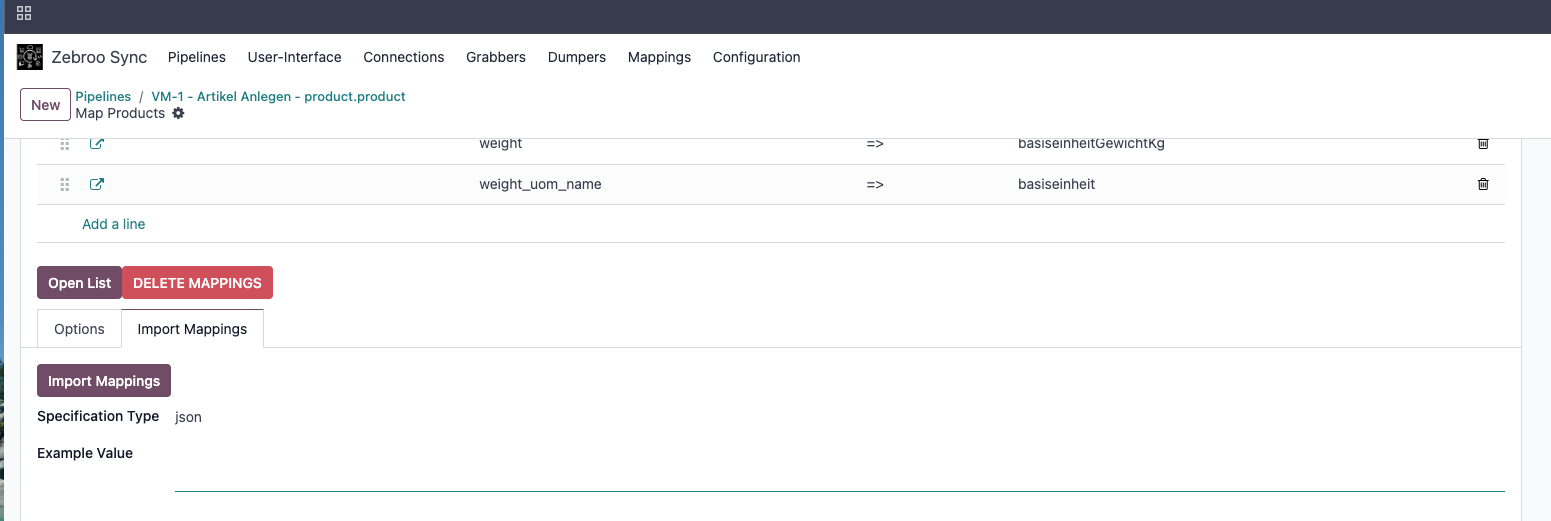
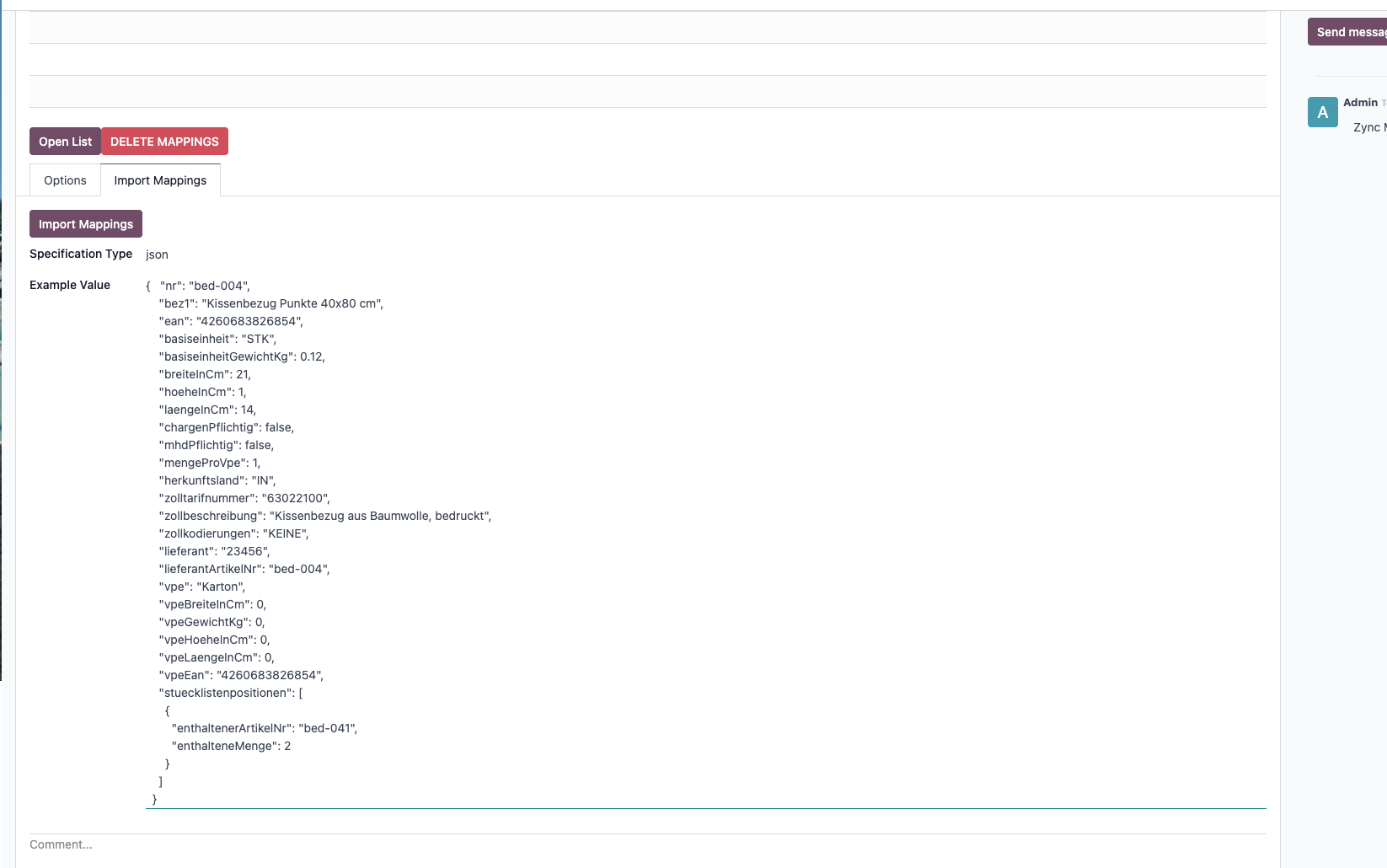
Paste the JSON below into Example Value as shown above, then click Import Mappings — it automatically creates mapping rows, which you can then adjust.
{
  "nr": "bed-004",
  "bez1": "Kissenbezug Punkte 40x80 cm",
  "ean": "4260683826854",
  "basiseinheit": "STK",
  "basiseinheitGewichtKg": 0.12,
  "breiteInCm": 21,
  "hoeheInCm": 1,
  "laengeInCm": 14,
  "chargenPflichtig": false,
  "mhdPflichtig": false,
  "mengeProVpe": 1,
  "herkunftsland": "IN",
  "zolltarifnummer": "63022100",
  "zollbeschreibung": "Kissenbezug aus Baumwolle, bedruckt",
  "zollkodierungen": "KEINE",
  "lieferant": "23456",
  "lieferantArtikelNr": "bed-004",
  "vpe": "Karton",
  "vpeBreiteInCm": 0,
  "vpeGewichtKg": 0,
  "vpeHoeheInCm": 0,
  "vpeLaengeInCm": 0,
  "vpeEan": "4260683826854",
  "stuecklistenpositionen": [
    {
      "enthaltenerArtikelNr": "bed-041",
      "enthalteneMenge": 2
    }
  ]
}
Result:
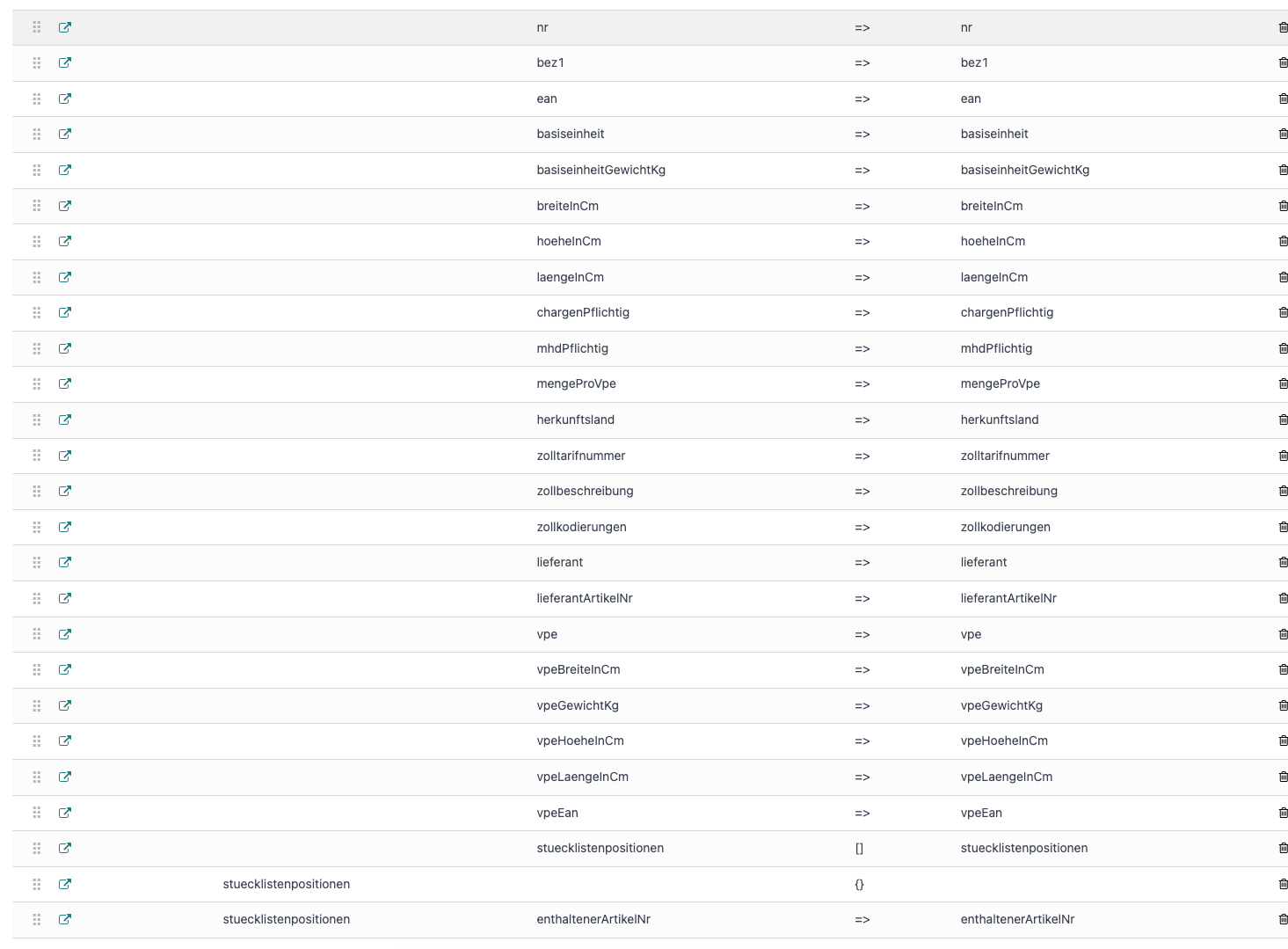
From there, adjust individual rows' source or destination as needed.