Authorising HTTP Endpoints
When using a zSYNC pipeline to expose an endpoint, the Start Worker is where authorisation for the endpoint is managed.
Requirements
Install the following zSYNC modules:
-
zbsync_receiver
-
zbsync_web_jwt
How To
Click on the header of the pipeline's Start worker (purple in the Chart view):
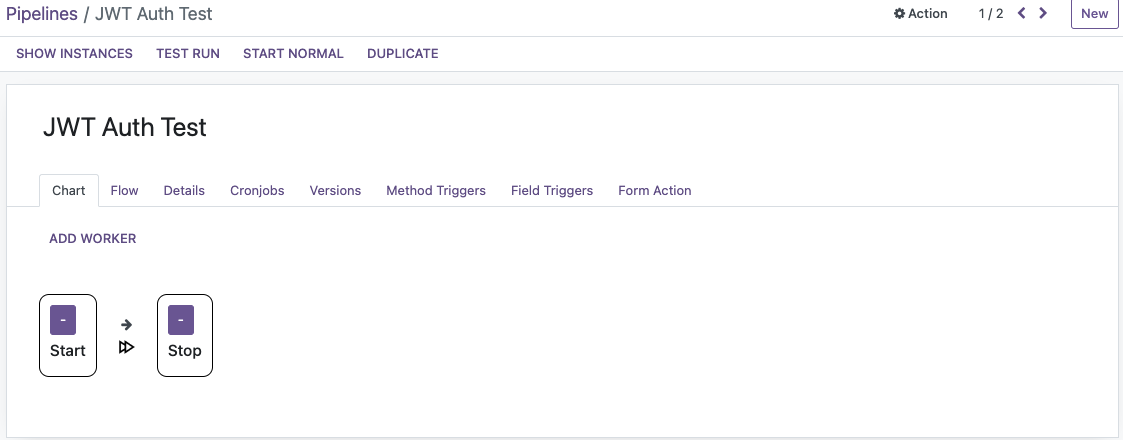
Inside the worker, several fields need configuring:
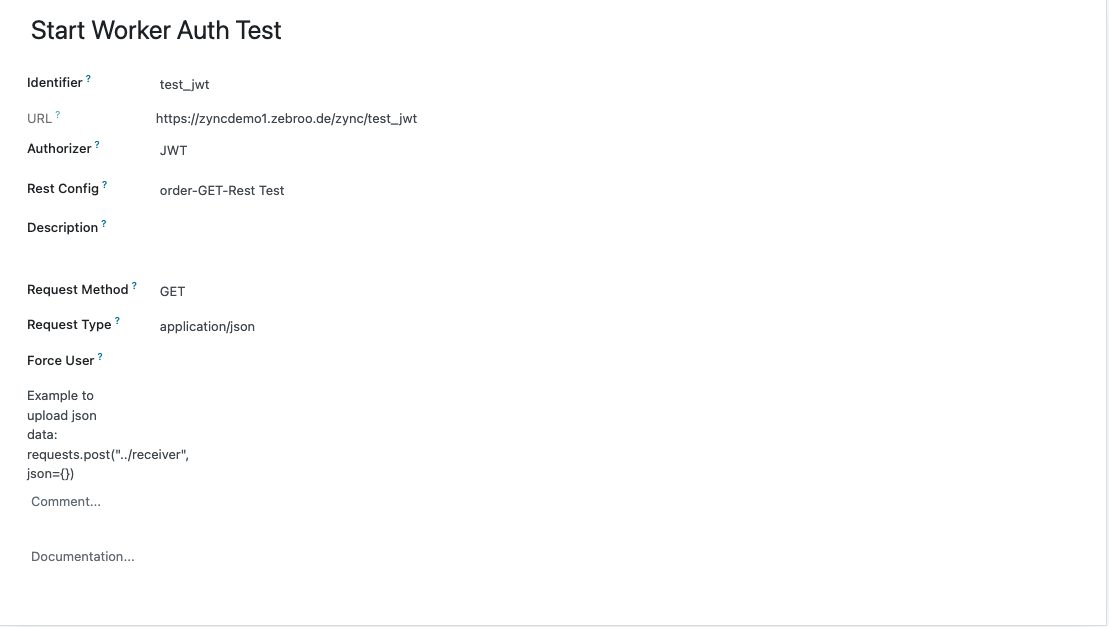
Set Identifier as the HTTP endpoint that triggers the pipeline. The URL field will be auto-populated. Adding authorisation to the endpoint is optional.
If no authorisation mechanism is added, the endpoint will be made publicly available. Otherwise an RSA Encrypted Bearer token style authorisation can be applied. This is recommended as best practice.
The Rest Config field allows for the creation of a REST configuration yaml file. These can be used to feed OpenAPI spec generation for the endpoint — see Creating OpenAPI Specs.
Additionally you can Set the Request Method the Endpoint allows, what Request Type the Endpoint expects and, if necessary, you can also force a specific user to run the Pipeline even if another user requested it.

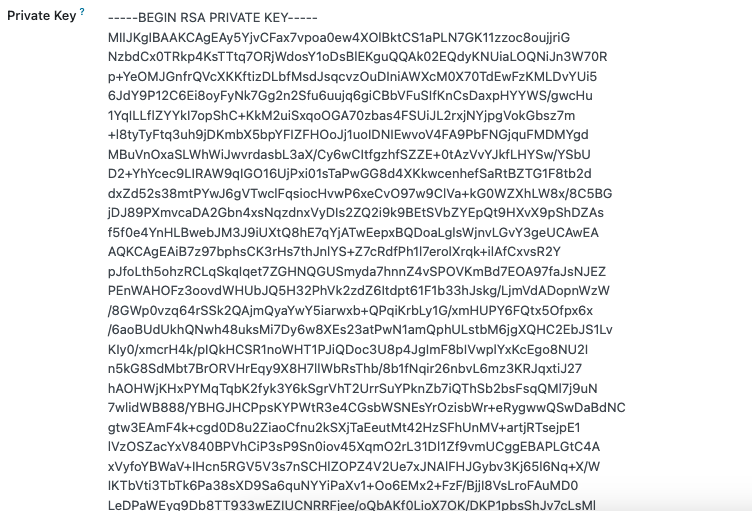
There will be a new Button on the top which will let you generate a private and Public RSA Key:

After generating those Keys you have the keys with which to encrypt your passwords and get your tokens!
The next Step is to Request a Token:
For that you will have to send a POST request to the Following Endpoint: https://zyncdemo1.zebroo.de/zync/clientTokens
Request body:
{
  "username": "admin",
  "password": "IxUIV3VpIF9-ozQl7kjVUMASmYxoPJVFoPhE4YEpDeWUfRyue7YRTlZTTNPNLN2jDsbAxPW4NA8Kt0o614g_EJKbXQdUa-UJ-BXjGHvkAFGocgZaiUxkm6ds5W-z3dPG7S7-dA9vWio-JwUwoZhtOhKF_IgA4-THAHp-gD6lI0vNwmWXG52AvDMM0QQP9oytT48qFNf6rY02P-pmPe5_qa1Q9axSq8Ompt0OBMb6FFjO9ZD8-0STHq-ZewCohDnWtsZRpQAuMyaswFxQRYRjE9VDkchEq5l3hxqLBrstCByLYwX8D_oMnK9i-ytMdqVoySxazzH1Q32McauZt42rp99XBdQ2MMdnbLqBDpjv6VnmrDTG_UJv2mFISyAIHV13syGvwq5CW--xJEZnLoeZ6KTmH98rxYeHEJCM00haq8lM56SjKBpDekUixlBuxol54KHtFTmyEwLOamfspCKv51rHpj7jTmoa_YZjxMdakFR00MJZRAD1oHFI9K2cH4Md__rtzNnF-0oF2AGwxKBkAPI0lXJOPtoYEYldRrvEVVmHkyCk9PpEQ5Y0akzRTmGkITMzbkul1pA2ysjKOZhpWCWNxQd919S-Y0Q03L0tQJgc6Vhx4LNNUP6vGuQSRXu0Jyn_pr193E_eYQzNpPm9koUC9jbomqjyRkGDNesGZIQ"
}
Note: The Username is the Odoo username of the person trying to access, the Password is their Odoo Password, BUT it was utf-8 Encoded, then it was RSA265 encrypted with the RSA Pub Key, then Base64 - encoded and finally utf-8 decoded to put it back to a string.
After the Request you get the Auth Token and its expiration date:
Auth Result:
{
  "token": "eyJ0eXBlIjogIkpXVCIsICJhbGciOiAiUlMyNTYiLCAiZW5jb2RpbmciOiAidXRmOCJ9.eyJvZG9vX3VzZXJfaWQiOiAyLCAiZGJuYW1lIjogInp5bmMxNmRlbW9fcHVibGljIiwgImV4cCI6ICIyMDI0LTA3LTEyIDEzOjI1OjI4In0.Qgw3llgIblNbBMLptPEQWtX0hmUNsfXYJBzqUfvsX6-2GcCT0i_7lQDpSVUxhtzoqagyoVgJYNORBUx0KxDvr2S1Qoi7emX26xUWPFoAyFYI6jCzp2JbWq3rlvWI8eHt3o4drumZGOq1ACc-Qna1EJkll1ajJ4k2KpMjm_tT8S3EcY6zSXpQAk0jIGGB5ZcD0t-unhiL-h1Qct6nX67UZ8wyUqkNsv5RI9gvl7R8H4wDrzRtsBu4ES3LtIb-rUlynPIO05BNQPgBC1-x82aTsmhjgbecQXkUhZmXeI9oA4-B2r0wKbTf2M4ms5pQY9V_ToV4lfgrl6khwSXdkSWyLIQG7E1y4Y060msjwqt6-JCDDI61u3rt1NIHTmGIcIAD4Z2l5zwU4F514i7jbXM4mKzOo-vs6aZEL6F6DdlZsNI6EKrSQ8rHPkQnXr3-Io2qrcd0OZBchjvOFnW6G6k5lXK7IShvYvZ9kutYg41FuUziLh8dbC551GvmTcc5GFzohRO9xfdx4WPEAdfu6y3KT0FSoWrMu9FiiqkgIYUOwD9zcRpM1sJsjtpNFuaYp9IugL1nF6IX3YKerwBYUMZVIkOKyvmygRkHMkC_H2dlK48_ut7FIk98GhOJ5qyBXrKmULVcyEqqryy13GeYtzO6MsRfCKLKDu5B_462MuS80rU",
  "expiration_date": "2024-07-12 13:25:28"
}
You can now use this Token in the Authorization Header in the Request with the Bearer Tag to authorise for as long as to token is valid:
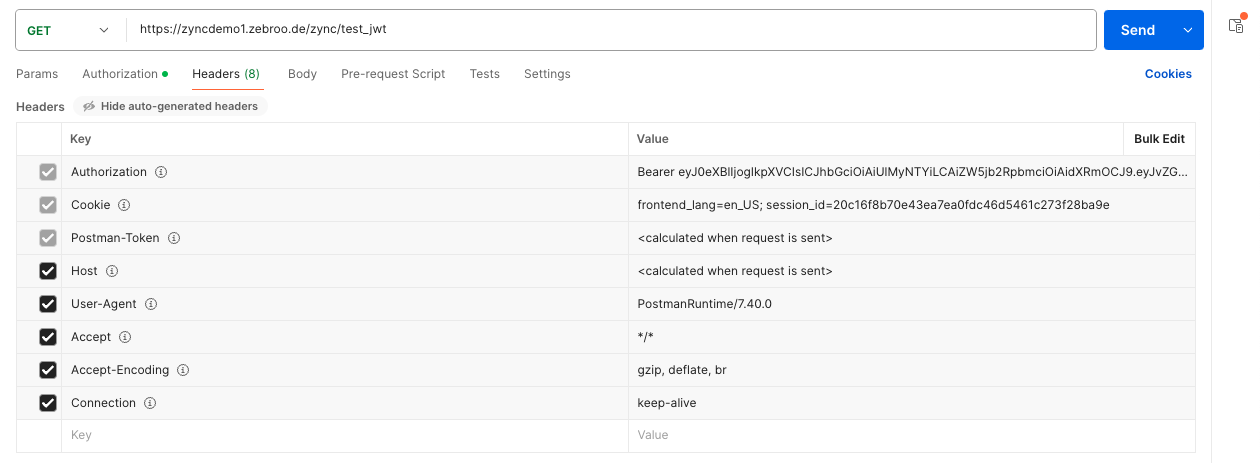
Note: The user context of the user requesting will be respected! So if a user requests data he has no access to it will result in an error.